首先我們要先說一下解三鍵的主體--Micro Usb 大家都知道斯斯有三種Usb介面有好幾種,舉例一般長方形頭的usb,mini usb,micro usb,最近最熱最夯的usb 3.0...
這麼多的Usb介面除了形狀的不同,最大的差別就是體位數腳位數的不同!舉例USB3有11條線(11隻腳),而我們一般最常用的隨身碟或USB2.0裝置的那種有4條線(4隻腳;vcc,d-,d+,gnd);Micro Usb 則有5條線(5隻腳;vcc,d-,d+,id,gnd)
而解三鍵就是要用到Micro Usb 的第4隻以及第5隻腳(id,gnd)串聯301K的電阻。只要了解上一句老師說畫紅筆必考的那一句定義,就不會有要買那一種線材回來做的問題,只要有Micro USB的就行。
Getting rid of that pesky warning triangle during boot
It is definitely possible to remove that pesky warning triangle during boot when running a custom kernel, though you should be well aware that this method does NOT reset the custom kernel flash counter. The steps are not complicated, but they aren't easy either, so read well.
(1) Make sure you have CF-Root flashed (see the first post). You must have the "CWM Manager" app available.
(2) Make sure you have the same version of CF-Root extracted until you have the zImage file. (ZIP --> extract --> TAR --> extract --> zImage).
(3) Push the zImage file to /sdcard . It must still be called zImage !
(4) Find an original Samsung signed stock kernel (preferably from the same stock firmware you have, but it's not terribly important)
(5) Reboot into download mode (adb reboot download, or boot the device with home and volume-down pressed)
(6) Fire up ODIN, and flash the Samsung kernel
(7) Boot the device with the stock kernel. CWM Manager will still be available.
(8) Start CWM Manager, select Flash Kernel, and select the zImage from CF-Root you previously put on your SD-card. The kernel will flash and the device will reboot.
(9) You will now notice you no longer have the warning triangle during boot, but you are actually running CF-Root with all it's goodies!
(10) In the future, if you only use the Flash Kernel option inside CWM Manager instead of ODIN, the triangle will not return, neither will your flash counter increase. But keep in mind, that CWM Manager can only handle a direct "zImage" if you are NOT running a kernel with full busybox support (this is currently needed for flashing kernels out of .TAR and .ZIP files)
Step 1: Install Odin v1.85 on your computer then download and unrar the Lite'ning Rom rar file.
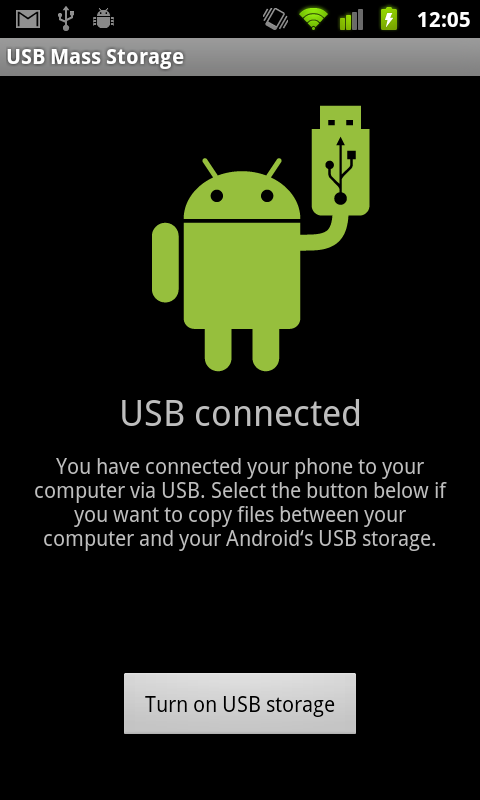
Step 2: Make sure that your phone is in USB debugging mode: Settings -> Applications -> Development -> USB debugging.
Step 3: Reboot your phone into download mode. To do so: Turn the device off, then power it on again by pressing and holding the Volume Down + Home + Power on simultaneously.
Step 4: Start Odin.
Step 5: Connect the phone to your computer using the USB cable.
Step 6: Wait a few seconds, the Odin screen will show that a device is now connected... Added!!
* Make sure that in Odin nothing is checked, except the "Auto reboot" and "F. Reset Time" checkboxes.
* Press the "PDA" button, and select the md5 file.
* Press "Start". Odin will now flash the Lite'ning Rom, after flashing your phone should reboot.
Step 7: Done! Now you have a fully rooted SGS II with the Lite'ning Rom installed!
问题:SGS2 已经刷了新 ROM 并无法从 market 下载之前能安装的软件(如 MyKouponz 及 Mobilekini),而且从电脑中的 android market 也无法安装。你会看到的错误信息是:"This item is not compatible with your device"。
(这需要 Edit build.prop file,就在 /system/ 里面可以找到)
01) After Open Root Explorer, browse in to the "System" folder
02) On the top screen, press the "Mount R/W" button and change it to "Mount R/O"
03) Backup the "build.prop" in this folder:
- Once you found it, hold it and select "Copy", browse back to "System" folder and then click "Paste"
- You shall see a new file name "build - Copy.prop",hold it and rename to "build.prop.BAK"
04) After the backup of "build.prop.BAK", repeat the same process by hold the file "build.prop", this time select "Open in Text Editor".
05) Find this line: ro.build.fingerprint= (located about half way down)
06) Update the entry same as below:
07) Press the Menu button from the phone, select "Save Changes".
08) Open Android Market and then Click on "Home" button, let it run as active application at the back
09) Go to Settings -> Applications -> Manage applications -> All
- Locate "Market" from the list
- Then press on "Clear Cache" button (I REPEAT: DO NOT press CLEAR DATA!!!!)
- Next, press "Force stop" button
- Locate "Google Services Framework" from the list
- This time press "Clear Data" button and finally press "Force stop" button
10) Re-open Android Market, it will prompt error message, this is a good sign (some of you might not receive this error message, please proceed with next step)
11) Completely shut down your phone manually and turn it on again
- Wait for Wireless to Kick In
- Wait for System to Finish Loading
12) This time open Android Market again, browse to the application that you failed to download just now and try to download again.
- If it opens without an error GREAT!
- If it opens with the same error... give it a couple minutes or multiple tries at opening (it will go through)
- 电池剩下 5 % - flash Litening 5.0
- 从samfirmware rom 下载: put in a incompatible PIT file
- pull out the USB cable while flashing is at midway stage
- flash a SGS rom ( the old model )
- if you use any of the cook rom - extract the zip file : change the core system apps ( 2.3.4) with 2.3.3 from another rom. Zip it back and flash
通过 TERMINAL commands
必须:
Rooted SGS II 需要 SU (Super User) 的权限
Terminal Emulator by Jack Palevich (market有得下) <-Terminal Emulator 还是用 ADB跟 SDK Development Tools一起来的
The standard prompt of terminal (adb) is a $ sign. Once you enter “SU” it will become a # Sign.
***NOTE: Make sure to keep an eye on the screen of your SGS II during this process, because it may request SU permissions [currently doesn't on CF-root]; else, you will get an error (just if it’s the first time). In Terminal Emulator you will need to reset the app after granting permissions cause it usually freezes***
*Remember: to use ADB you need to enable USB DEBUGGING under Applications/Development in your SGS II.
su
mkdir /sdcard/efs
busybox tar zcvf /sdcard/efs/efs-backup.tar.gz /efs
cat /dev/block/mmcblk0p1 > /sdcard/efs/efs_dev-block-mmcblk0p1.img
Close terminal emulator, then transfer to your pc.
RESTORING : Restoring efs backup (It helped when the phone is not working and imei is blank):
put your efs-backup.tar.gz in sdcard then in adb shell
su
umount /efs
mke2fs /dev/block/mmcblk0p1
mount -w -t ext4 /dev/block/mmcblk0p1 /efs
busybox tar zxvf /sdcard/efs-backup.tar.gz -C /
关于我的提供的方法是针对 SGS2 已经刷了新 ROM 并无法从 market 下载之前能安装的软件,请你 update 一下:
问题:SGS2 已经刷了新 ROM 并无法从 market 下载之前能安装的软件(如 MyKouponz 及 Mobilekini),而且从电脑中的 android market 也无法安装。你会看到的错误信息是:"This item is not compatible with your device"。
(这需要 Edit build.prop file,就在 /system/ 里面可以找到)
01) After Open Root Explorer, browse in to the "System" folder
02) On the top screen, press the "Mount R/W" button and change it to "Mount R/O"
03) Backup the "build.prop" in this folder:
- Once you found it, hold it and select "Copy", browse back to "System" folder and then click "Paste"
- You shall see a new file name "build - Copy.prop",hold it and rename to "build.prop.BAK"
04) After the backup of "build.prop.BAK", repeat the same process by hold the file "build.prop", this time select "Open in Text Editor".
05) Find this line: ro.build.fingerprint= (located about half way down)
06) Update the entry same as below:
07) Press the Menu button from the phone, select "Save Changes".
08) Open Android Market and then Click on "Home" button, let it run as active application at the back
09) Go to Settings -> Applications -> Manage applications -> All
- Locate "Market" from the list
- Then press on "Clear Cache" button (I REPEAT: DO NOT press CLEAR DATA!!!!)
- Next, press "Force stop" button
- Locate "Google Services Framework" from the list
- This time press "Clear Data" button and finally press "Force stop" button
10) Re-open Android Market, it will prompt error message, this is a good sign (some of you might not receive this error message, please proceed with next step)
11) Completely shut down your phone manually and turn it on again
- Wait for Wireless to Kick In
- Wait for System to Finish Loading
12) This time open Android Market again, browse to the application that you failed to download just now and try to download again.
- If it opens without an error GREAT!
- If it opens with the same error... give it a couple minutes or multiple tries at opening (it will go through)



 本周最热论坛帖子







 发表于 17-8-2011 08:19 AM

 )
)

 变色卡
变色卡 千斤顶
千斤顶 楼主
楼主 小的不保证你的S2会不会成石头的!我也不负起何责任
 )
)
 ------->


 其實三星最主要不是看開機的驚嘆號,而是系統內部會有一個計數器,刷一次跳一


 .
.




 2006
2006  143
143


