|
查看: 3491|回复: 21
|
C# XNA 粒子系统应用:雪花
[复制链接]
|
|
|
之前发表过GDI+的粒子系统,之后就因为忙碌没有跟进发表MDX版的粒子系统,现在发一个XNA版的玩玩。
[使用工具]
1)Visual C# 2005 Express Edition。
2)XNA Game Studio 2.0。
3)绘图软件,个人推荐 Paint.NET,功能比 MS Paint 强很多的绘图软件,免费的。
[概念]
这个粒子系统和之前的GDI+版本没多大差别,事实上只要把之前的那个版本稍作修改就可以了。不过既然使用XNA,我就干脆使用了XNA里面的GameComponent class来制作粒子。
[目标]
1)使用 XNA GS 来制作粒子系统。
2)熟悉 2D 游戏的制作(主要在于[更新][读取输入]和[绘画游戏画面]方面)
3)熟悉 SpriteBatch 的运用。
-----------------------------------
首先开启一个新的 XNA Game Project: File->New Project...->Windows Game 2.0,把Project命名为ParticleSnow。
以下是XNA GS 2.0所产生的空白Project:- using System;
- using System.Collections.Generic;
- using Microsoft.Xna.Framework;
- using Microsoft.Xna.Framework.Audio;
- using Microsoft.Xna.Framework.Content;
- using Microsoft.Xna.Framework.GamerServices;
- using Microsoft.Xna.Framework.Graphics;
- using Microsoft.Xna.Framework.Input;
- using Microsoft.Xna.Framework.Net;
- using Microsoft.Xna.Framework.Storage;
- namespace ParticleSnow
- {
- /// <summary>
- /// This is the main type for your game
- /// </summary>
- public class Game1 : Microsoft.Xna.Framework.Game
- {
- GraphicsDeviceManager graphics;
- SpriteBatch spriteBatch;
- public Game1()
- {
- graphics = new GraphicsDeviceManager(this);
- Content.RootDirectory = "Content";
- }
- /// <summary>
- /// Allows the game to perform any initialization it needs to before starting to run.
- /// This is where it can query for any required services and load any non-graphic
- /// related content. Calling base.Initialize will enumerate through any components
- /// and initialize them as well.
- /// </summary>
- protected override void Initialize()
- {
- // TODO: Add your initialization logic here
- base.Initialize();
- }
- /// <summary>
- /// LoadContent will be called once per game and is the place to load
- /// all of your content.
- /// </summary>
- protected override void LoadContent()
- {
- // Create a new SpriteBatch, which can be used to draw textures.
- spriteBatch = new SpriteBatch(GraphicsDevice);
- // TODO: use this.Content to load your game content here
- }
- /// <summary>
- /// UnloadContent will be called once per game and is the place to unload
- /// all content.
- /// </summary>
- protected override void UnloadContent()
- {
- // TODO: Unload any non ContentManager content here
- }
- /// <summary>
- /// Allows the game to run logic such as updating the world,
- /// checking for collisions, gathering input, and playing audio.
- /// </summary>
- /// <param name="gameTime">Provides a snapshot of timing values.</param>
- protected override void Update(GameTime gameTime)
- {
- // Allows the game to exit
- if (GamePad.GetState(PlayerIndex.One).Buttons.Back == ButtonState.Pressed)
- this.Exit();
- // TODO: Add your update logic here
- base.Update(gameTime);
- }
- /// <summary>
- /// This is called when the game should draw itself.
- /// </summary>
- /// <param name="gameTime">Provides a snapshot of timing values.</param>
- protected override void Draw(GameTime gameTime)
- {
- graphics.GraphicsDevice.Clear(Color.CornflowerBlue);
- // TODO: Add your drawing code here
- base.Draw(gameTime);
- }
- }
- }
接下来是加入Particle class。基于好奇和学习理由,我决定使用XNA GS的GameComponent class来取代自己写的Generic class。在现有的Project里面加入一个新的GameComponent:
Project->Add New Item...->Game Component.
把Game Component命名为Particle。
这个Game Component事实上就是一个class file,它和一般的 Generic Class 不同的是,它多了一些对游戏程式主体的认知(Game-Aware),和已经内建自己的Update函式。- namespace ParticleSnow
- {
- /// <summary>
- /// This is a game component that implements IUpdateable.
- /// </summary>
- public class Particles : Microsoft.Xna.Framework.GameComponent
- {
- public Vector2 position, origin;
- public int lifespan;
- public float decay;
- public bool isDead;
- public Color color;
- public int age;
- byte value;
- public int depth;
- public float scale;
- float rotate;
- public float angle;
-
- public Particles(Game game)
- : base(game)
- {
- // TODO: Construct any child components here
- Random rnum = new Random();
- position = new Vector2(rnum.Next(0, 1024), 0);
- origin = new Vector2(64, 64);
- depth = rnum.Next(1, 70);
- scale = depth / 100f;
- lifespan = 720;
- decay = depth / 10;
- if (decay < 1)
- decay = 1;
- age = 0;
- isDead = false;
- value = 255;
- color = new Color(value, value, 255);
- rotate = ((float)rnum.Next(1, 100)) / 1000f;
- angle = 0;
- }
- /// <summary>
- /// Allows the game component to perform any initialization it needs to before starting
- /// to run. This is where it can query for any required services and load content.
- /// </summary>
- public override void Initialize()
- {
- // TODO: Add your initialization code here
-
- base.Initialize();
- }
- /// <summary>
- /// Allows the game component to update itself.
- /// </summary>
- /// <param name="gameTime">Provides a snapshot of timing values.</param>
- public override void Update(GameTime gameTime)
- {
- // TODO: Add your update code here
- if (!isDead)
- {
- age += (int)decay;
- angle += rotate;
- position.Y = age;
- if (age >= lifespan)
- isDead = true;
- }
- base.Update(gameTime);
- }
- }
- }
上面的是我的最终版本,其实我是经过几个阶段才达到这个状态的,接下来我将逐步讲解整个粒子雪花系统的发展史。
[待续]
[ 本帖最后由 geekman 于 19-6-2009 02:08 PM 编辑 ] |
|
|
|
|
|
|
|
|
|
|
|

楼主 |
发表于 19-6-2009 01:07 PM
|
显示全部楼层
首先我们来探讨这个粒子雪花系统的一些概念:
1)粒子需要一个定位数值,我采用了Vector2D来记录这个数据,命名为position,也就是粒子在画面上的(X,Y)值。
2)粒子需要一个前进方位,在雪花的情形下,这个数值就是单纯的向下坠落。这个我偷懒一点,直接使用粒子的年龄来代表。因为随着时间的经过,粒子会衰老,年龄增长,这正好可以用来当作粒子的Y座标。
3)粒子需要一个寿命值,这件决定粒子的存在的时限。因为我用了粒子的寿命为其Y座标,这也变相的把我的粒子寿命特性和粒子在画面的位置挂钩了,换句话说,我完全可以把粒子的存在条件设定为:当它坠落到画面的某个高度就会死去(消失)。
4)粒子的年龄 - 这个数值和粒子的衰老度挂钩,每一个循环,粒子的年龄将随着该粒子的衰老度增长(每个粒子的衰老度都不一样),直到打到寿命极限(画面里的Y座标极限),就会死去。
5)粒子的衰老度,这个数值只是为了让每个粒子都有不同存活时限,免得整个粒子系统显得太过呆板,规律化。
6)isDead 这个开关只是为了方便检测粒子是否已经死亡。
以上是粒子的基本数值,接下来是为了增加趣味性才在后来加入的数值:
7)origin 这个 Vector2D,是为了旋转和放大缩小雪花才加进去的,它是使用于旋转和缩放功能的中心点,也就是说,在选转雪花影像时,这个店就是旋转的中心点,在缩放时,这个点就是放大和缩小的中心。
8)scale负责雪花影像的放大缩小,scale=0.5f表示雪花被缩小50%,scale=2.50f代表雪花被放大250%。
9)rotate和angle代表了雪花的旋转角度和角度的速度。
10)value只是我用来调整雪花的颜色的一个数值,原本的雪花是五彩缤纷的,现在我只是用它来设定雪花的红和青色的数值。
11)depth是用来模拟雪花和镜头的距离,用来模拟景深的。
接下来是各个数值的设定和原因:- Random rnum = new Random();
- rnum 是 Random number object,用来提取随机数值的。
- position = new Vector2(rnum.Next(0, 1024), 0);
- 这里我使用随机数值来初始化雪花的X座标,雪花的初始Y座标永远是0。
- Random.Next(min, max)是用来产生随机整数,而min,max这是这个整数的最小和最大可能性,使用0,1024是因为我的画面设定为1024x768,所以雪花的X座标可以是画面宽度的任何一个位置。
- origin = new Vector2(64, 64);
- origin是雪花影像的中心点,我采用的雪花影像大小是128x128,所以其中心点就是(64,64)
- depth = rnum.Next(1, 70);
- 雪花的深度,随机产生。原本理想的深度为0到100,经过运算,它会化为0%~100%,并使用于缩放雪花影像的scale factor。但是为了避免0%(雪花完全看不见)以及太过巨大的雪花(128x128的确是太大了一点),所以我把min设定为1,max设定为70(也就是说雪花最大状态会被缩小30%)
- scale = depth / 100f;
- 简单,就是把深度换成缩放的百分比。
- lifespan = 720;
- 粒子的寿命,也就是说等雪花坠落到 Y >= 720 时就会死亡。
- decay = depth / 10;
- 粒子的衰老度,同时也是雪花坠落的速度。远处的会坠落的比较慢,近处的会坠落的比较快,造成景深的幻像。
- if (decay < 1)
- decay = 1;
- 因为四舍五入的关系,小于0.5的衰老度会变成0,所以要预防粒子不会衰老的情况。
- isDead = false;
- 这个很简单吧?关系着粒子的死活。
- value = 255;
- color = new Color(value, value, 255);
- 雪花的色调,改变value的数值可以改变雪花的蓝色调(蓝色被我固定在最高值)
- rotate = ((float)rnum.Next(1, 100)) / 1000f;
- angle = 0;
- rotate是雪花的旋转速度,angle是雪花的当前旋转角度。这两个数值都是以raidan来计算的,而不是度数(degree)。
|
|
|
|
|
|
|
|
|
|
|
|
楼主 |
发表于 19-6-2009 01:32 PM
|
显示全部楼层
- public override void Update(GameTime gameTime)
- {
- // TODO: Add your update code here
- if (!isDead)
- {
- age += (int)decay;
- angle += rotate;
- position.Y = age;
- if (age >= lifespan)
- isDead = true;
- }
- base.Update(gameTime);
- }
粒子本身就这么简单。
接下来是Game本身:
首先,你得在Solution Explorer里面加入需要用到的图像和其他物件。
1)加入2个图像(雪花和背景)在Content项目里面(在Solution Explorer 里面 right click Content 项目,然后选择 Add Existing。。。,选择想要加入的图像,然后选择Add As Link会比较好,这样以来你在图像里面所做的修改都会直接反映在你的Content Pipeline 里面)。雪花图像我用绘图软件去底然后储存在PNG格式,因为PNG可以支援透明底色。
2)增加一个 SpriteFont 物件。方法和增加图像差不多。详情可以参考XNA说明书里关于SpriteFont的使用方法。- using System;
- using System.Collections.Generic;
- using Microsoft.Xna.Framework;
- using Microsoft.Xna.Framework.Audio;
- using Microsoft.Xna.Framework.Content;
- using Microsoft.Xna.Framework.GamerServices;
- using Microsoft.Xna.Framework.Graphics;
- using Microsoft.Xna.Framework.Input;
- using Microsoft.Xna.Framework.Net;
- using Microsoft.Xna.Framework.Storage;
- namespace ParticleSnow
- {
- /// <summary>
- /// This is the main type for your game
- /// </summary>
- public class Game1 : Microsoft.Xna.Framework.Game
- {
- GraphicsDeviceManager graphics;
- SpriteBatch spriteBatch;
- Texture2D snowflakes, bg;
- SpriteFont sfont;
- List<Particles> plist;
- int maxCount = 200;
-
- public Game1()
- {
- graphics = new GraphicsDeviceManager(this);
- this.graphics.PreferredBackBufferWidth = 1024;
- this.graphics.PreferredBackBufferHeight = 768;
- this.graphics.IsFullScreen = false;
- Content.RootDirectory = "Content";
- }
- /// <summary>
- /// Allows the game to perform any initialization it needs to before starting to run.
- /// This is where it can query for any required services and load any non-graphic
- /// related content. Calling base.Initialize will enumerate through any components
- /// and initialize them as well.
- /// </summary>
- protected override void Initialize()
- {
- // TODO: Add your initialization logic here
- plist = new List<Particles>(maxCount);
- base.Initialize();
- }
- /// <summary>
- /// LoadContent will be called once per game and is the place to load
- /// all of your content.
- /// </summary>
- protected override void LoadContent()
- {
- // Create a new SpriteBatch, which can be used to draw textures.
- spriteBatch = new SpriteBatch(GraphicsDevice);
- // TODO: use this.Content to load your game content here
- snowflakes = Content.Load<Texture2D>("snowflake");
- bg = Content.Load<Texture2D>("eratap_beach");
- sfont = Content.Load<SpriteFont>("SpriteFont1");
- }
- /// <summary>
- /// UnloadContent will be called once per game and is the place to unload
- /// all content.
- /// </summary>
- protected override void UnloadContent()
- {
- // TODO: Unload any non ContentManager content here
- }
- /// <summary>
- /// Allows the game to run logic such as updating the world,
- /// checking for collisions, gathering input, and playing audio.
- /// </summary>
- /// <param name="gameTime">Provides a snapshot of timing values.</param>
- protected override void Update(GameTime gameTime)
- {
- // Allows the game to exit
- if (GamePad.GetState(PlayerIndex.One).Buttons.Back == ButtonState.Pressed)
- this.Exit();
- // TODO: Add your update logic here
- if (plist.Count < maxCount)
- plist.Add(new Particles(this));
-
- for (int i = 0; i < plist.Count; i++)
- {
- plist[i].Update(gameTime);
- if (plist[i].isDead)
- plist.RemoveAt(i);
- }
-
- if(Keyboard.GetState().IsKeyDown(Keys.Escape))
- this.Exit();
- base.Update(gameTime);
- }
- /// <summary>
- /// This is called when the game should draw itself.
- /// </summary>
- /// <param name="gameTime">Provides a snapshot of timing values.</param>
- protected override void Draw(GameTime gameTime)
- {
- graphics.GraphicsDevice.Clear(Color.Black);
- // TODO: Add your drawing code here
-
- spriteBatch.Begin(SpriteBlendMode.AlphaBlend);
- spriteBatch.Draw(bg, new Rectangle(0, 0, 1024, 768), Color.White);
- foreach (Particles p in plist)
- {
- spriteBatch.Draw(snowflakes, p.position, null, p.color, p.angle, p.origin, p.scale, SpriteEffects.None, 0);
- }
- spriteBatch.DrawString(sfont, "Press ESC to Quit", Vector2.Zero, Color.White);
- spriteBatch.End();
- base.Draw(gameTime);
- }
- }
- }
- Texture2D snowflakes, bg;
- Texture2D 是使用于 2D 状况下的图像,基本上就和Bitmap差不多。这两个Texture,一个是雪花的图像,一个是背景,背景我使用了一个从网上找来的阳光明媚的海滩照片,有点恶搞的意味,嘿嘿嘿。。。
- SpriteFont sfont;
- SpriteFont 是用来在DX画面上书写文字的,你必须在Windows的Control Panel 里面确认你的Font Type Face 的名字,然后打开SpriteFont得档案,把Font Type Face Name 填进去。
- List<Particles> plist;
- 老朋友了,用来记录粒子的list。详情请参考我的另一篇文章:http://cforum2.cari.com.my/viewthread.php?tid=1242667&extra=page%3D1
- int maxCount = 200;
- 用来限制粒子最大数量。更大的数量就会占据更多的运算资源,看着自己的电脑能力来加减吧。
|
|
|
|
|
|
|
|
|
|
|
|
楼主 |
发表于 19-6-2009 01:47 PM
|
显示全部楼层
- this.graphics.PreferredBackBufferWidth = 1024;
- this.graphics.PreferredBackBufferHeight = 768;
- this.graphics.IsFullScreen = false;
- protected override void LoadContent()
- {
- // Create a new SpriteBatch, which can be used to draw textures.
- spriteBatch = new SpriteBatch(GraphicsDevice);
- // TODO: use this.Content to load your game content here
- snowflakes = Content.Load<Texture2D>("snowflake");
- bg = Content.Load<Texture2D>("eratap_beach");
- sfont = Content.Load<SpriteFont>("SpriteFont1");
- }
- if (plist.Count < maxCount)
- plist.Add(new Particles(this));
-
- for (int i = 0; i < plist.Count; i++)
- {
- plist[i].Update(gameTime);
- if (plist[i].isDead)
- plist.RemoveAt(i);
- }
-
- if(Keyboard.GetState().IsKeyDown(Keys.Escape))
- this.Exit();
最后是Game.Draw()程式:- protected override void Draw(GameTime gameTime)
- {
- graphics.GraphicsDevice.Clear(Color.Black);
- // TODO: Add your drawing code here
-
- spriteBatch.Begin(SpriteBlendMode.AlphaBlend);
- spriteBatch.Draw(bg, new Rectangle(0, 0, 1024, 768), Color.White);
- foreach (Particles p in plist)
- {
- spriteBatch.Draw(snowflakes, p.position, null, p.color, p.angle, p.origin, p.scale, SpriteEffects.None, 0);
- }
- spriteBatch.DrawString(sfont, "Press ESC to Quit", Vector2.Zero, Color.White);
- spriteBatch.End();
- base.Draw(gameTime);
- }
|
|
|
|
|
|
|
|
|
|
|
|
楼主 |
发表于 19-6-2009 02:01 PM
|
显示全部楼层
|
|
|
|
|
|
|
|
|
|
|
 发表于 22-6-2009 06:11 PM
|
显示全部楼层
发表于 22-6-2009 06:11 PM
|
显示全部楼层
谢谢楼主。。我迟点试试看
最近刚开始接触XNA+C#。。才刚开始学习oop学校assignment就要制作游戏。。有点难度 |
|
|
|
|
|
|
|
|
|
|
|
楼主 |
发表于 23-6-2009 01:31 PM
|
显示全部楼层
回复 6# 千年刹 的帖子
|
任何关于 C#+XNA 的问题欢迎提出讨论。 |
|
|
|
|
|
|
|
|
|
|
|
楼主 |
发表于 23-6-2009 01:31 PM
|
显示全部楼层
回复 6# 千年刹 的帖子
|
任何关于 C#+XNA 的问题欢迎提出讨论。 |
|
|
|
|
|
|
|
|
|
|
|
楼主 |
发表于 23-6-2009 01:33 PM
|
显示全部楼层
|
|
|
|
|
|
|
|
|
|
|
楼主 |
发表于 23-6-2009 01:33 PM
|
显示全部楼层
|
|
|
|
|
|
|
|
|
|
|
发表于 26-6-2009 12:33 AM
|
显示全部楼层
回复 7# geekman 的帖子
我会的。。而且肯定会有很多
可是现在还在design阶段。。high concept都还没想好 |
|
|
|
|
|
|
|
|
|
|
|
楼主 |
发表于 26-6-2009 10:30 AM
|
显示全部楼层
哦,对了,如果是与粒子系统无关的,你可以另外开个[C# + XNA 问题讨论区]主题,以免跑题了。
这里我还要继续讨论粒子系统应用的(下一次更新会是3D环境的雪花/天气现象)。 |
|
|
|
|
|
|
|
|
|
|
|
发表于 12-7-2009 08:59 PM
|
显示全部楼层
成功~

没有font没有background,懒得弄 |
|
|
|
|
|
|
|
|
|
|
|
发表于 12-7-2009 09:28 PM
|
显示全部楼层
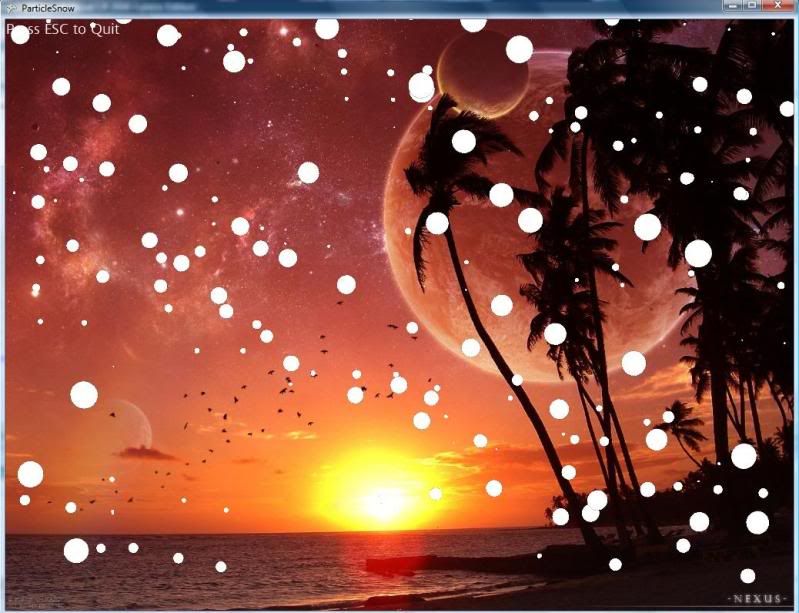
想问下lz,你的雪是直落的吗?
我把origin换去比snow图大的数值时,snow下落时会像在左右飘动,
但其实是在围着中心旋转,比较好看 |
|
|
|
|
|
|
|
|
|
|
|
楼主 |
发表于 12-7-2009 10:53 PM
|
显示全部楼层
恭喜成功
如果你把origin设定为大过图形,就会导致雪花围绕着图形的右下角旋转,这样一来雪花就会以螺旋状的路径向下坠落。 |
|
|
|
|
|
|
|
|
|
|
|
发表于 8-9-2009 01:07 PM
|
显示全部楼层
|
|
|
|
|
|
|
|
|
|
|
楼主 |
发表于 8-9-2009 04:34 PM
|
显示全部楼层
|
|
|
|
|
|
|
|
|
|
|
发表于 8-9-2009 04:46 PM
|
显示全部楼层
回复 17# geekman 的帖子
|
我的意思是问为什么我 upload 的图不能像你们 upload 的图那样放大(在论坛里放大)。 |
|
|
|
|
|
|
|
|
|
|
|
楼主 |
发表于 8-9-2009 05:24 PM
|
显示全部楼层
|
这个论坛本身会把过大的图片缩小到适合论坛版面格局的大小的。 |
|
|
|
|
|
|
|
|
|
|
|
发表于 8-9-2009 05:37 PM
|
显示全部楼层
原来如此, 刚要进入你的教学 ”使用C# + Managed DIrectX 制作 2D 游戏“ 
希望不会太难懂  |
|
|
|
|
|
|
|
|
|
| |
 本周最热论坛帖子 本周最热论坛帖子
|










 变色卡
变色卡 千斤顶
千斤顶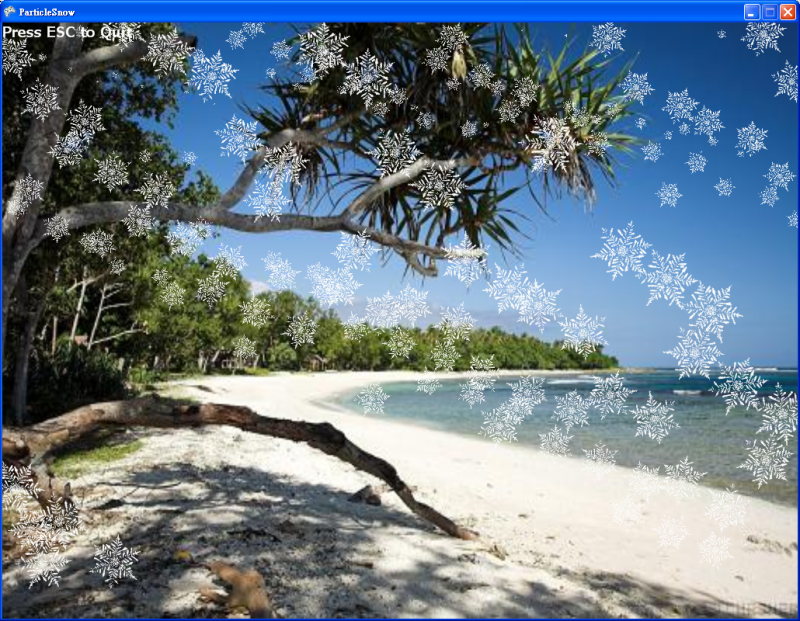




 2522
2522  45
45


